Mortal Shell 2 Best Settings & Controls
Updated September 4, 2026 · Checked for the current launch build
Quick answer: Change these before the first boss: Camera Style → Action, Auto Pick Up Gold → Yes, Auto Lock-On → On, Enable Free Aim → Yes, UI Scale → Large or Extra Large. Then open Controls and confirm heal, lock-on, and Shell revive on your device — published bind tables disagree on Q versus Tab.
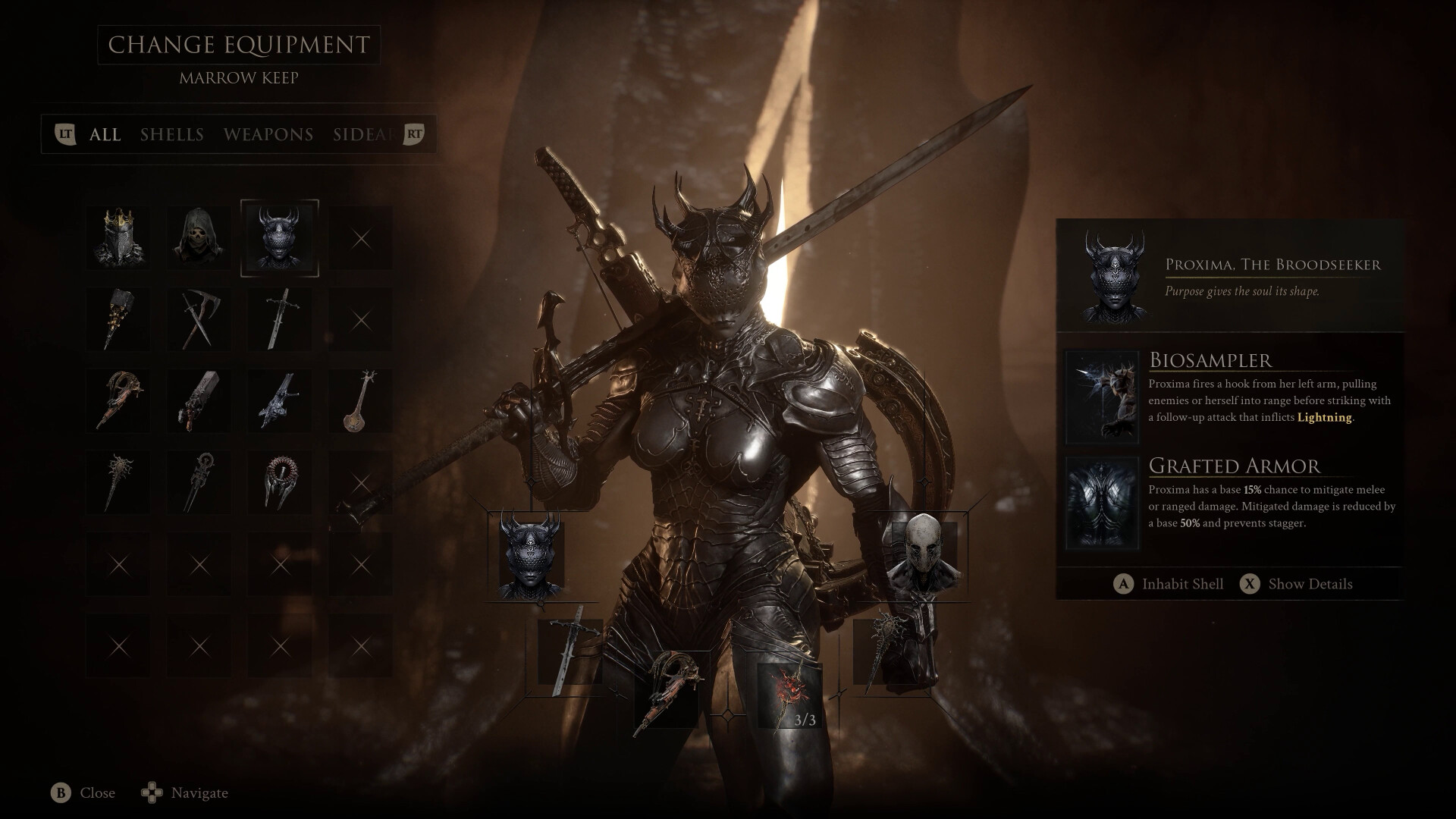
Official promotional screenshot: Steam / Cold Symmetry / Playstack
Change these first
| Setting | Set it to | Why |
|---|---|---|
| Camera Style | Action | Wider view for exploration and groups. Game8's first recommendation. |
| Auto Pick Up Gold | Yes | Coin on the floor is easy to miss in Night Mode and grass. |
| Auto Lock-On | On | Helps in trash rooms. Drop the lock on huge bosses — see lock-on. |
| Enable Free Aim | Yes | Lets the sidearm shoot plates, distant Gloom, and offering candles. |
| UI Scale | Large / Extra Large | The Shell-revive meter and Pulse charges are easy to lose on a 4K desktop. |
| Adaptive Difficulty | Off unless you want it | Experimental. Off by default under Game > Game Settings. Toggle anytime. See the Adaptive Difficulty update. |
Steam Deck crash notes live on PC fixes. Graphics for FPS are below; this first table is the gameplay Options pass.
PC graphics if you are stuttering
Destructoid's launch pass and Wccftech's later analysis both start by capping the frame rate and turning Frame Generation off. Week 1 improved shader hitching and some crowded rooms, but FG is still the first thing to disable after a crash.
| Setting | Start here | Why |
|---|---|---|
| Frame Generation | Off | Launch and post-patch crash reports still cluster here. Cold Symmetry also warned about mods / read-only engine.ini breaking FG after Week 1. |
| Framerate Limit | 60 as a first cap | Removes a lot of hitching on mid-range cards. Raise it after the game is stable. |
| Upscaler | FSR or TSR, Performance / Balanced | Cheaper than native 4K on a 70 GB UE5 title. DLSS is fine if your GPU has it and FG stays off. |
| Global Illumination / Shadows | Low | Largest GPU extras after upscaling. |
| Motion Blur / Vignette | Off | Clarity in a game that already darkens the edges. |
| VSync | Off, then On if the cap still tears | Destructoid flipped this only when stutters remained. |
Default combat binds (community)
| Action | PC | Xbox |
|---|---|---|
| Light / heavy attack | LMB / RMB | RB / RT |
| Dodge | Space | B (also hold to sprint) |
| Guard / Harden | Left Alt | LB is Seal ability on some tables — confirm Guard in Options |
| Mether's Pulse (heal) | R | D-pad Up |
| Shell ability | F | Y |
| Shell revive | Z | Y when the swirl is up |
| Aim sidearm | Left Ctrl | LT |
| Tarstone / infusion | X | X |
| Map / menu | M / I / Esc | D-pad Down / View / Menu |
Lock-on conflict: Game8's How to Lock On page lists Q on keyboard. A separate community controls table lists Tab for lock-on and Q for parry. Open Controls on your install and bind what you actually have. This site's lock-on page follows Game8 until we can screenshot the default menu.
Related guides
Lock-on · How to heal · PC fixes · Difficulty · Adaptive Difficulty update
Evidence: Gameplay toggles follow Game8's Best Settings page. Default combat binds mix Game8's lock-on table with a community PC/Xbox layout. The Q vs Tab lock-on conflict is disclosed below. Graphics starting points follow Destructoid (August 17, 2026) and Wccftech's PC analysis (August 28, 2026), plus Cold Symmetry's Week 1 frame-generation note. Reviewed September 4, 2026; your Options menu wins.